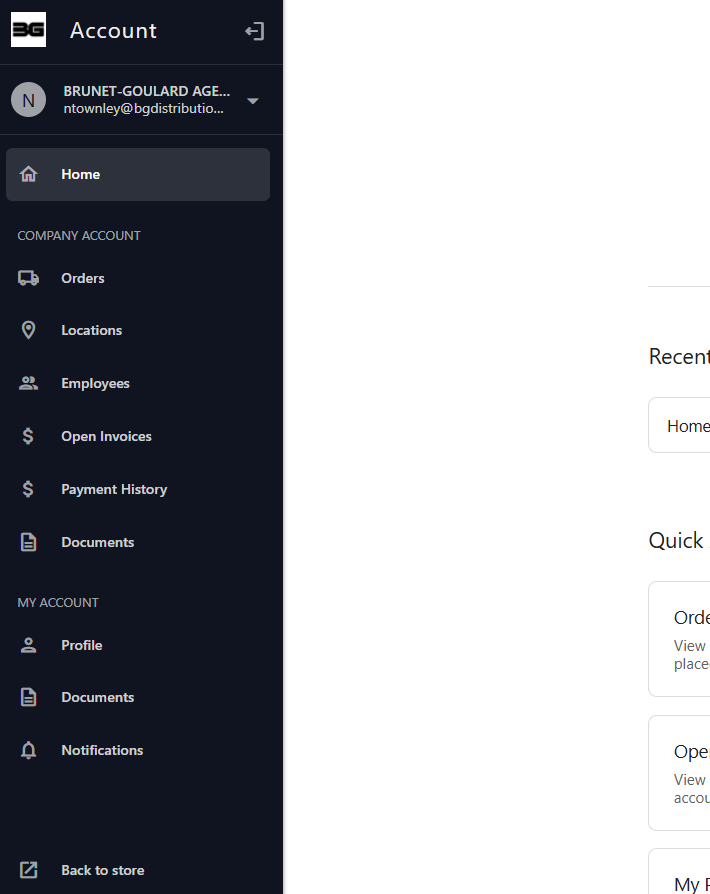
This section shows the customer portal tabs and features. Access depends on your permissions. Contact a Company Admin or BG Distribution if you need more.
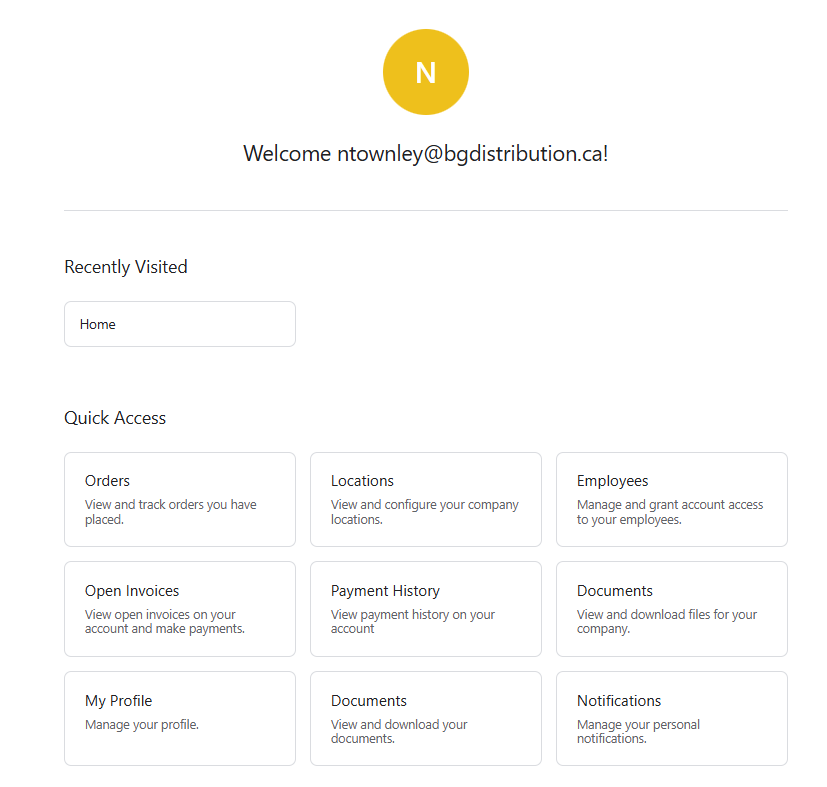
The Home tab shows you the tabs you’ve recently visited, along with a quick overview of the ones you can access.
Orders Tab
View all of your company’s orders, whether placed online or through BG’s customer service team.
View your order acknowledgement
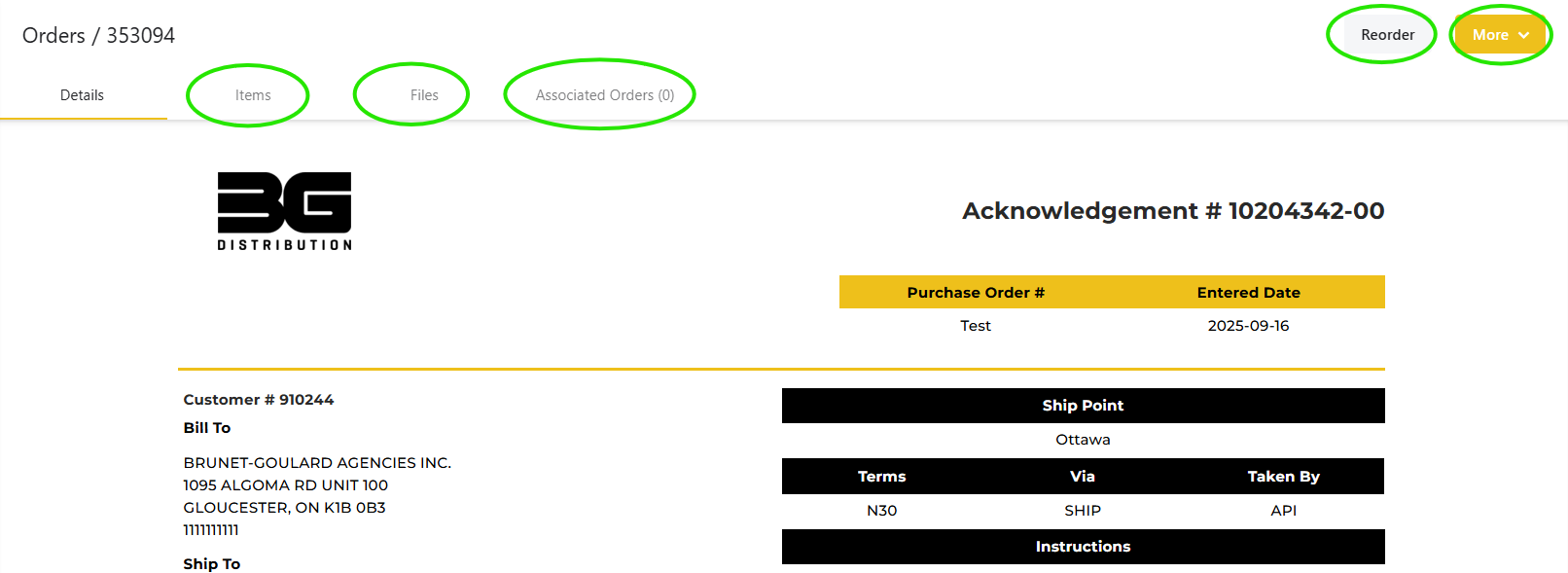
Click the arrow on the right side of the list of orders to open the order acknowlegement
To download the acknowledgement click “More” then “Print”
“Reorder” allows you to quickly add the items from your order to your cart.
For a list of the items on your order, you can click “Items”
To see the files you’ve printed/downloaded, click “Files”
If your order is linked to other orders, they will show up in the “Associated Orders” tab
View an organize your order information
When you open the tab, you will see the following columns :
Web # (the ID the store assigns your order before it’s processed in our system and given a proper order #)
Order #
Company Name
Status
Purchase Order
Total
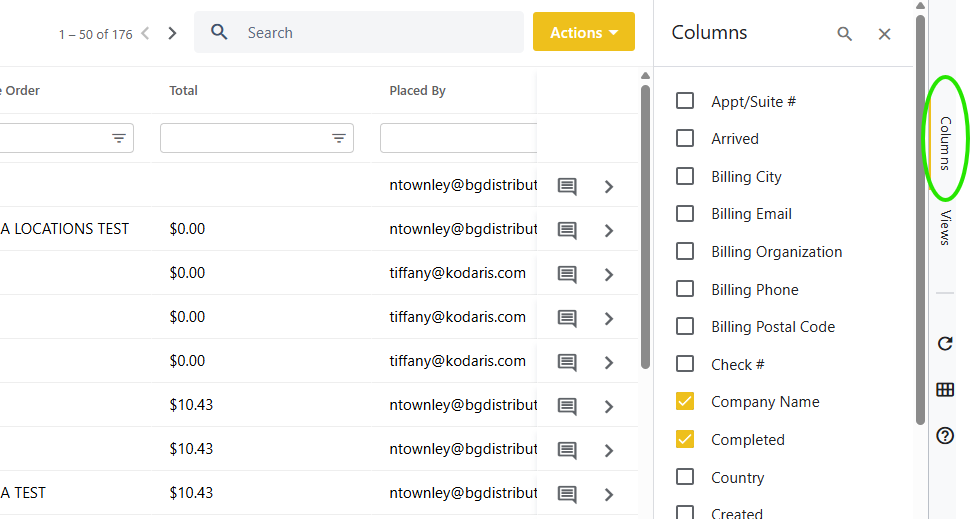
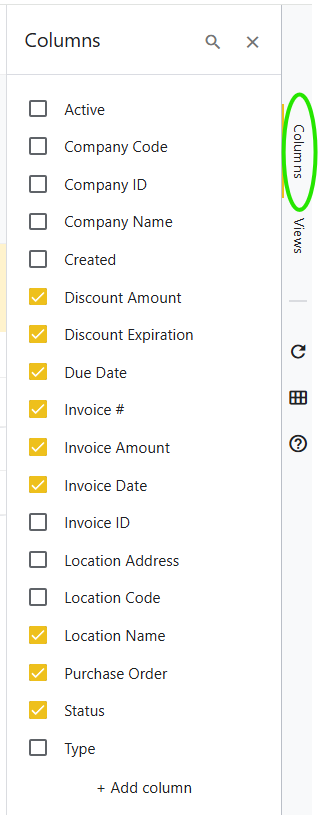
To view more information, click “columns” on the right side of the screen. You will get a long list of information you can view if applicable to your order.
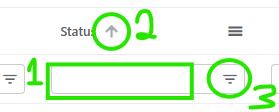
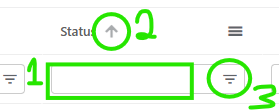
You search (1), sort (2), and filter (3) the columns
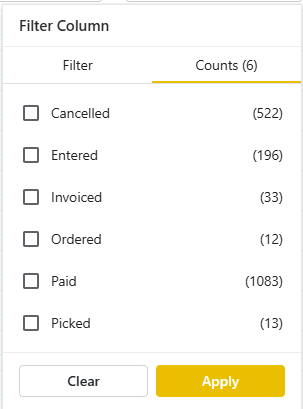
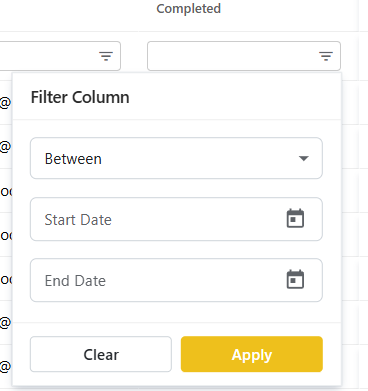
Some columns have special filter options, for example filtering using a list of options, or filtering for a date range.
Download your orders (Spreadsheet list)
Add/Hide the columns so only those you want to download are visible
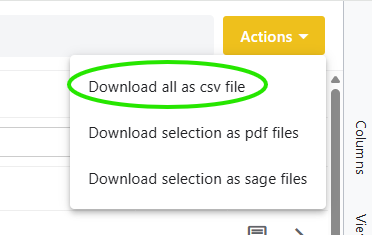
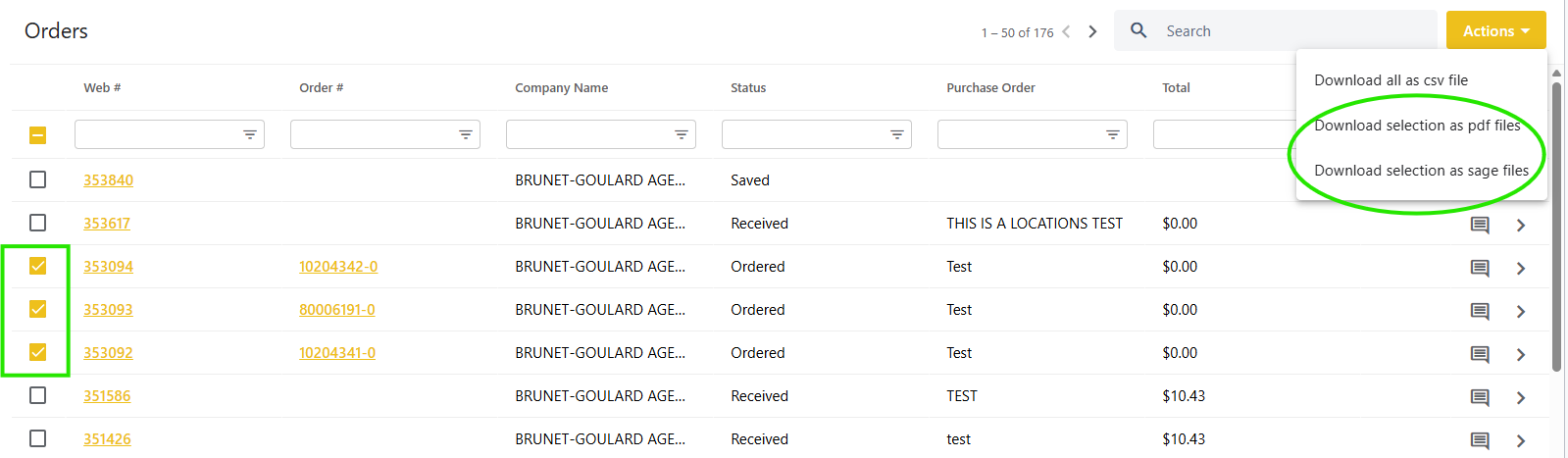
Click actions in the top right corner, and choose “Download all as CSV file”
Download your acknowlegements (as PDFs or Sage files)
Select the orders, then click “Actions” in the top right corner, and choose “Download selection as PDF files” or “Download selection as sage files”
Locations Tab
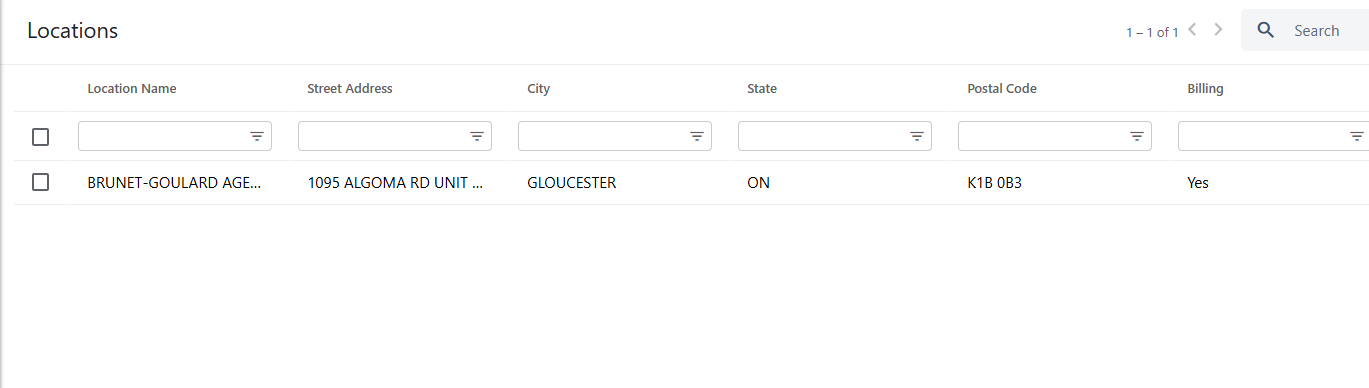
List of locations (ship-tos) can be viewed here
If you want to add or remove ship-tos, you need to contact ar.cr@bgdistribution.ca because it needs to be done through our internal system
With that being said, please note that you do not need to ship to a ship-to, at checkout you can type in any valid address.
Employees Tab
The employee tab allows you to see a list of the users under your company, and general information. You can click the "Columns" tab and add additional information. You can also sort and filter the columns to search for specific users.
Company Admins can add users, edit user account information, and revoke access. To have an account completely deleted, please contact BG Distribution.
This tab can only be viewed if you have the "Accounts payable" permission, which is given to Admin and Accounting users. To request this role, please contact your Company Admin, or BG Distribution.
View your Invoices
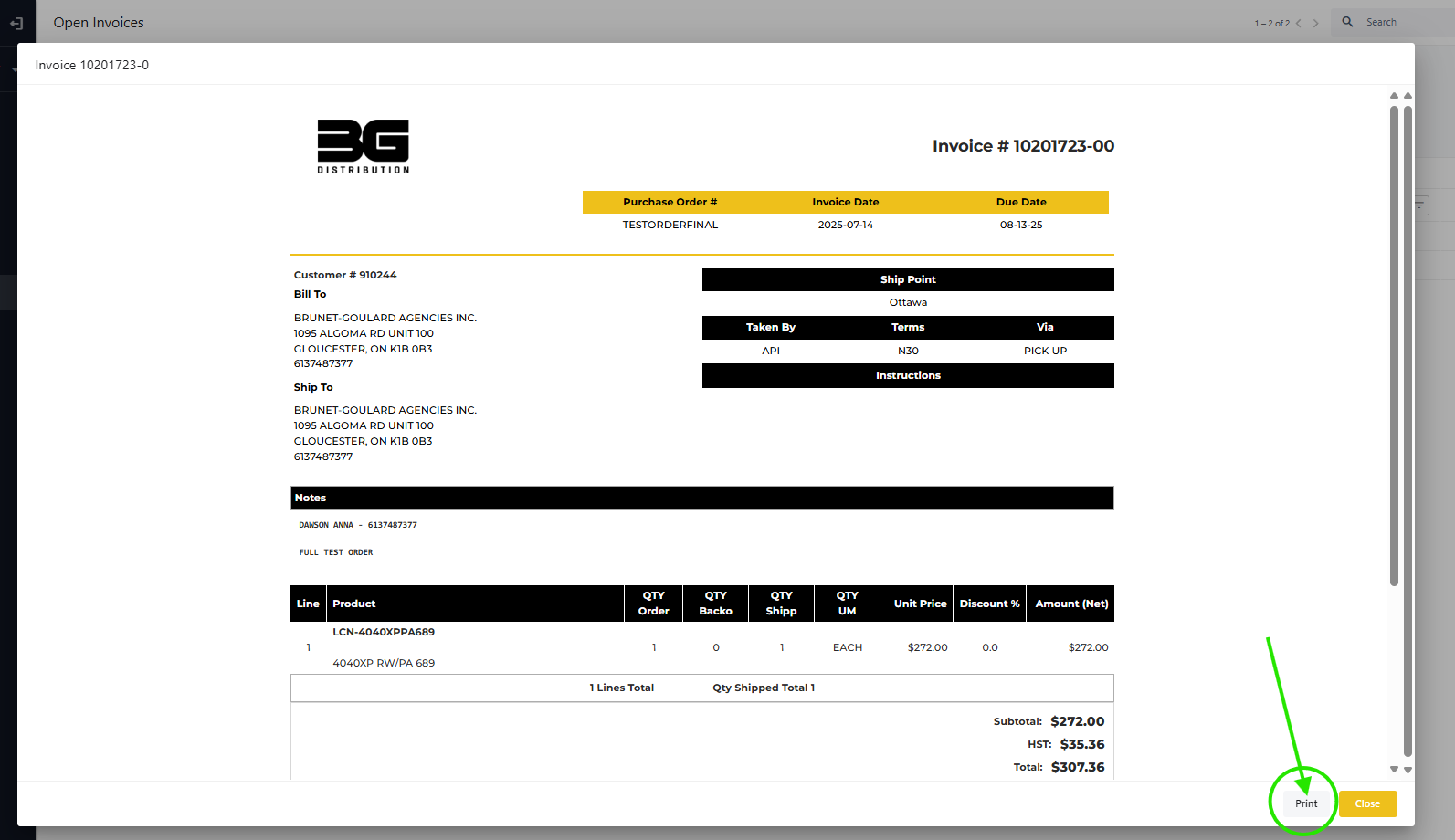
Click on the yellow Invoice number to open the invoice
A window with a preview of your invoice will open.
Click print in the bottom right corner to download it
Sort and Filter your Open Invoices
By clicking the boxes next to the different periods, you can filter the invoices.
You can also search, sort, and filter the columns
To view more information, click “columns” on the right side of the screen. You will get a list of information you can view if applicable to your order.
Add Invoice Comments
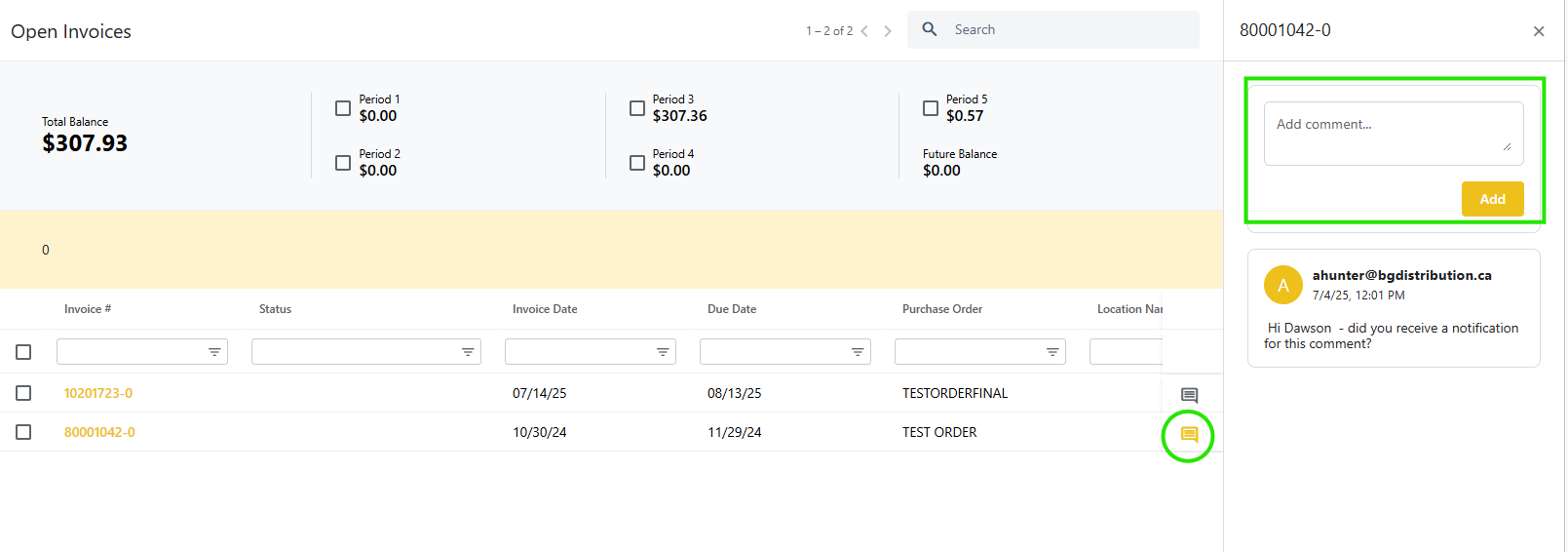
You can leave comments on invoices, either for your internal team, or if you have an inquiry. BG Distribution will be notified when you leave comments, and we will forward it to the correct channel to ensure your inquiry gets answered.
Click on the comment icon, then type your message, and click "Add".
In the example you can see us testing to ensure the notifications are going through!
Payment History Tab
Coming soon!
Paying for orders directly through the online store, and subsequently payment history, will not be part of the initial launch.
We will send out a notice and update the guide when these features become available in the future.
Documents Tab (Company Account)
The documents tab under the Company Account section can only be viewed if you have the "Accounts payable" permission, which is given to Admin and Accounting users. To request this role, please contact your Company Admin, or BG Distribution.
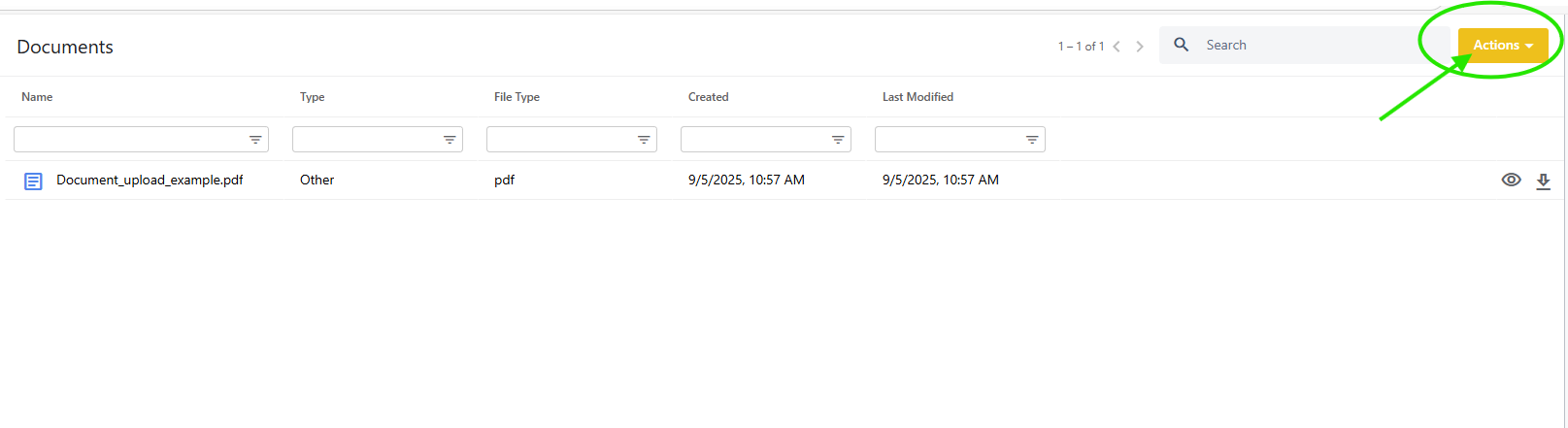
This tab is for sharing documents with other users under your company, as anything uploaded here will be visible to all Admin and Accounting users in your company.
To add a file, click "Actions" in the top right corner, then "Attach a file"
Profile Tab
Change your password (from your profile instead of by resetting it)
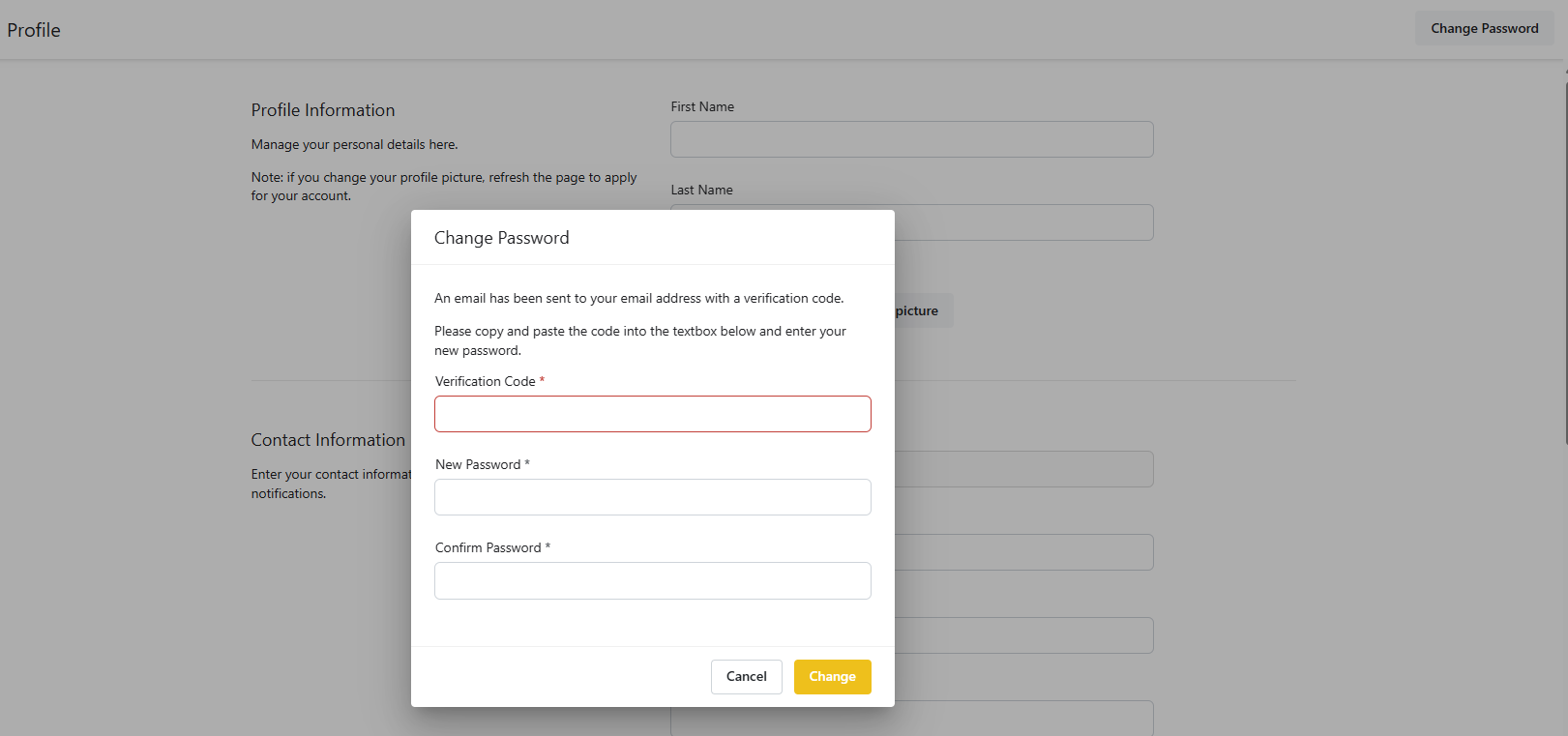
Click the button in the top right corner of this page to change your password
Follow the instructions that appear on the screen
You will receive a verification code in your email. Its long so you should copy paste it
Next, enter your new password and click change.
Add optional information to your profile
Add your first and last name
Add a profile picture
Add your contact information
Add your address
You can choose your account language
This determines the language of your communications, acknowlegements, invoices, etc.
Default Store
Please disregard this, it does not do anything
Documents Tab (My Account)
This tab allows you to upload and store documents on your account
Documents uploaded here are only visible to you
Notifications Tab
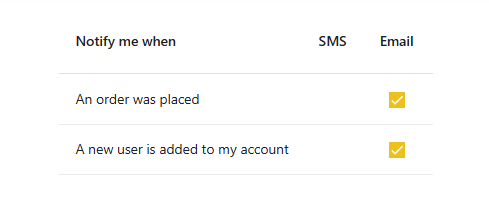
These notifications refer to actions taken by other users under your company.
Do you want to be notified whenever any user in your company places an order?
Do you want to be notified whenever a new user is added to your account?
Please note that as features are added, more notifications will be available.